 GoodMem
Web Console and Cloud
Open GoodMem Cloud or a self-hosted console, configure models, upload your first document, run a search, and connect an application with the Rust SDK or another client.
Use your browser to create a searchable memory space and ask a question about its content. You can follow this guide on GoodMem Cloud or the web console included with a self-hosted GoodMem server. No CLI or SDK is needed for the first search.
1. Open your instance
GoodMem Cloud
- Open GoodMem Cloud and sign in.
- Select your team and an existing instance, or complete the dashboard's instance setup if you do not have one yet.
- Open that instance's console. Keep its REST URL available for connecting an application later.
The Cloud dashboard manages teams and instances; the instance console manages your models, spaces, and memories. The Cloud overview describes the managed service. You do not need to run the local installer for a Cloud instance.
Self-hosted GoodMem
- Install and start GoodMem.
- Open the Web console URL printed by the installer. The console is served at
/console/on your server's HTTP endpoint. - When prompted, enter your GoodMem API key from the installation or your administrator.
For a local installation with a self-signed certificate, follow Use mkcert for local TLS to configure trust. Use the same host and scheme as your installation; the gRPC address printed as Server URL is for the CLI.
If you received an enrollment invitation instead of an API key, first follow Redeem an Enrollment.
2. Set up models and a space
GoodMem uses an embedder to make content searchable and a space to hold that content. An LLM generates an answer from search results. A reranker is optional.
You will encounter two different credentials:
| Credential | Purpose |
|---|---|
| GoodMem API key | Authenticates you or your application to your GoodMem instance. |
| Model provider key | Lets GoodMem call a provider such as OpenAI for embeddings or generated answers. |
If your team has already configured models and a space you can access, reuse them and continue to upload a document.
Use Quick start
For an instance without an embedder, Overview offers Set up GoodMem with one key. You can also open Quick start from the console navigation.
- Paste a Model provider key, such as your OpenAI key. This field is not for a GoodMem key.
- Confirm the provider if the console asks, then review the proposed models.
- Keep creation of a first space enabled and choose a name such as
My first space. - Select Set up GoodMem. The console creates or reuses the resources and tests the model connections.
- Review the result. A provider may not offer every resource type; add an LLM separately if your setup does not include one and you want generated answers.
If a provider test fails, check its credentials and account access, then retry the failed setup. The results show which resources succeeded. For a server you run yourself or a custom endpoint, use the manual route below.
Configure resources manually
- Open Resources → Embedders and create an embedder. Supply the provider, endpoint, model identifier, credentials, and dimensionality required by that model.
- Open Spaces and create a space with that embedder. Use recursive chunking for a general document collection.
- Open Resources → LLMs and create an LLM for generated answers.
- Check the model health indicators before uploading content.
See Managing Resources for the forms and Endpoint registration for provider-specific URLs. If a create action is unavailable, ask your instance administrator for the corresponding permissions or use resources they have shared with you.
3. Upload a document
- Open your space's Memories view and select Create.
- Choose File upload and select a small text file or PDF with content you can ask about. Alternatively, choose Text input and enter a short paragraph.
- Add any useful metadata, then select Submit.
- Wait for the memory's processing status to reach Completed before searching.
For a quick text test, use:
The support team is available Monday through Friday, from 09:00 to 17:00 UTC.
Urgent requests should include the account ID and a short description of the issue.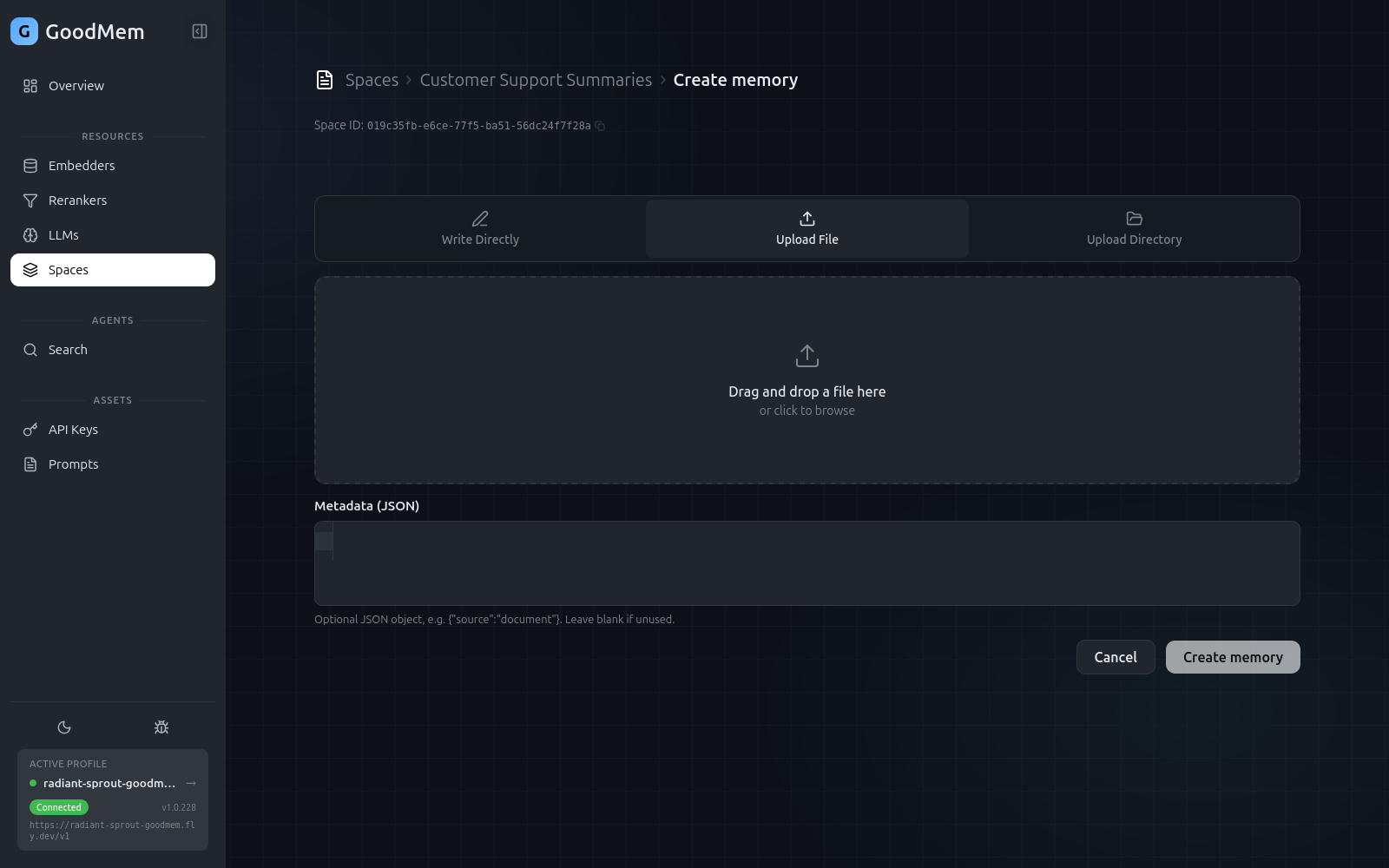
Pending and Processing mean ingestion is still running. If the memory reaches Failed, inspect its error details and the embedder's health before retrying. For scanned documents that need OCR, see OCR Quickstart. The base self-hosted install does not include the OCR add-on.
4. Run your first search
- Open Search under Agents.
- In the settings panel, select your space and the LLM you configured.
- Ask a question answered by the content. For the sample paragraph, try “When is the support team available?”
- Inspect the retrieved chunks and the generated answer. Open a result to check the underlying memory text.
If you see no results, check that the correct space is selected, ingestion has completed, and your key has access to the space and its resources. If retrieval succeeds but answer generation fails, check the LLM's credentials and health.
See Search for reranking, prompt settings, token budgets, and deep research. Cloud users can also explore Optimize retrieval when tuning is available to their workspace.
5. Connect your application
The console and SDKs work with the same resources. Keep the space ID from this walkthrough and use it in your application rather than creating another space.
-
Open Security → API keys and select Issue key for yourself or a service identity you administer. Choose authority appropriate for your application; see console access control.
-
Save the raw key when it is shown. It is displayed only once.
-
Set your instance's REST base URL and the key in your application's environment:
export GOODMEM_BASE_URL="https://your-instance.example.com"
export GOODMEM_API_KEY="your-goodmem-api-key"
Use the instance URL, not https://cloud.goodmem.ai, and omit /console and /v1.
For a local server, use its configured HTTP scheme, host, and port.
For Rust, follow SDK installation and Connect and list spaces. Select Rust in the Basic RAG guide for typed ingestion and streaming retrieval examples. The SDK overview also covers Python, TypeScript, Java, Go, and .NET.
GoodMem Cloud instances expose the REST interface used by these SDKs. They do not expose the gRPC port used by the CLI; use the console, an SDK, or REST for Cloud workflows.