 GoodMem
Access Control
Invite users, create service identities, issue scoped API keys, and share spaces and resources from the console
Access Control
The console's Security section manages the same authorization model that the CLI and REST API expose: principals, roles, grants, and API keys. Nothing here is console-only, and nothing in the CLI or API is missing from the console. If your deployment does not expose the gRPC port — GoodMem Cloud instances do not — the console is the primary way to administer access.
The sidebar has four Security pages:
| Page | What it manages |
|---|---|
| Users | Human identities, their instance roles, and enrollment invitations |
| Service identities | Workload identities and the scoped keys issued to them |
| API keys | Every credential you can see, with its subject, authority mode, and validity window |
| Instance access | Instance ownership, instance-wide roles, and instance-wide grants |
Per-resource access lives with the resource: each space has an Access tab, and each embedder, LLM, and reranker has an Access page. A separate Enrollment page at /console/enroll is for people redeeming an invitation.
Every list in this section shows only what your credential is allowed to read — the footer says Showing what you have access to. An administrator sees everything; a user with the standard USER role sees their own keys and the resources they own. The concepts behind these screens are covered in Security Model.
Users
Security → Users lists every human principal you can read, with their instance roles, enrollment status, and creation date. Show deleted includes tombstoned users; deletion is permanent, so the history is still visible.
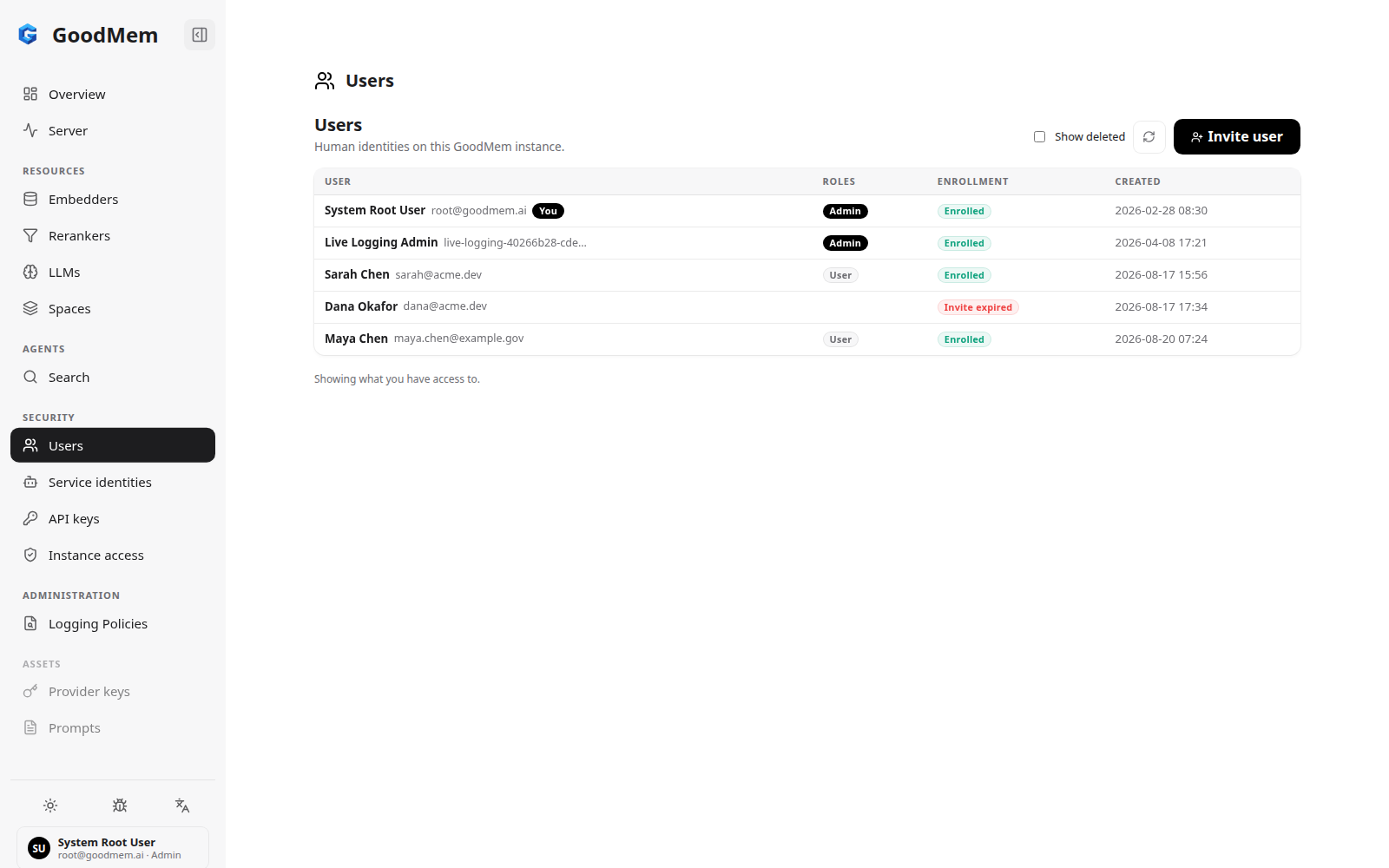
The Enrollment column tracks the account bootstrap: Enrolled means the person has redeemed their invitation and holds an API key; Invite pending and Invite expired mean they have not.
Inviting a User
Click Invite user. Only the email is required. The three checkboxes correspond to the three steps of onboarding:
- Assign the standard User role — the ordinary self-service bundle; recommended.
- Also make this person an administrator — assigns
ADMINas well. - Create an enrollment invitation now — mints the one-time credential. Leave this unchecked to provision the account ahead of time and invite later.
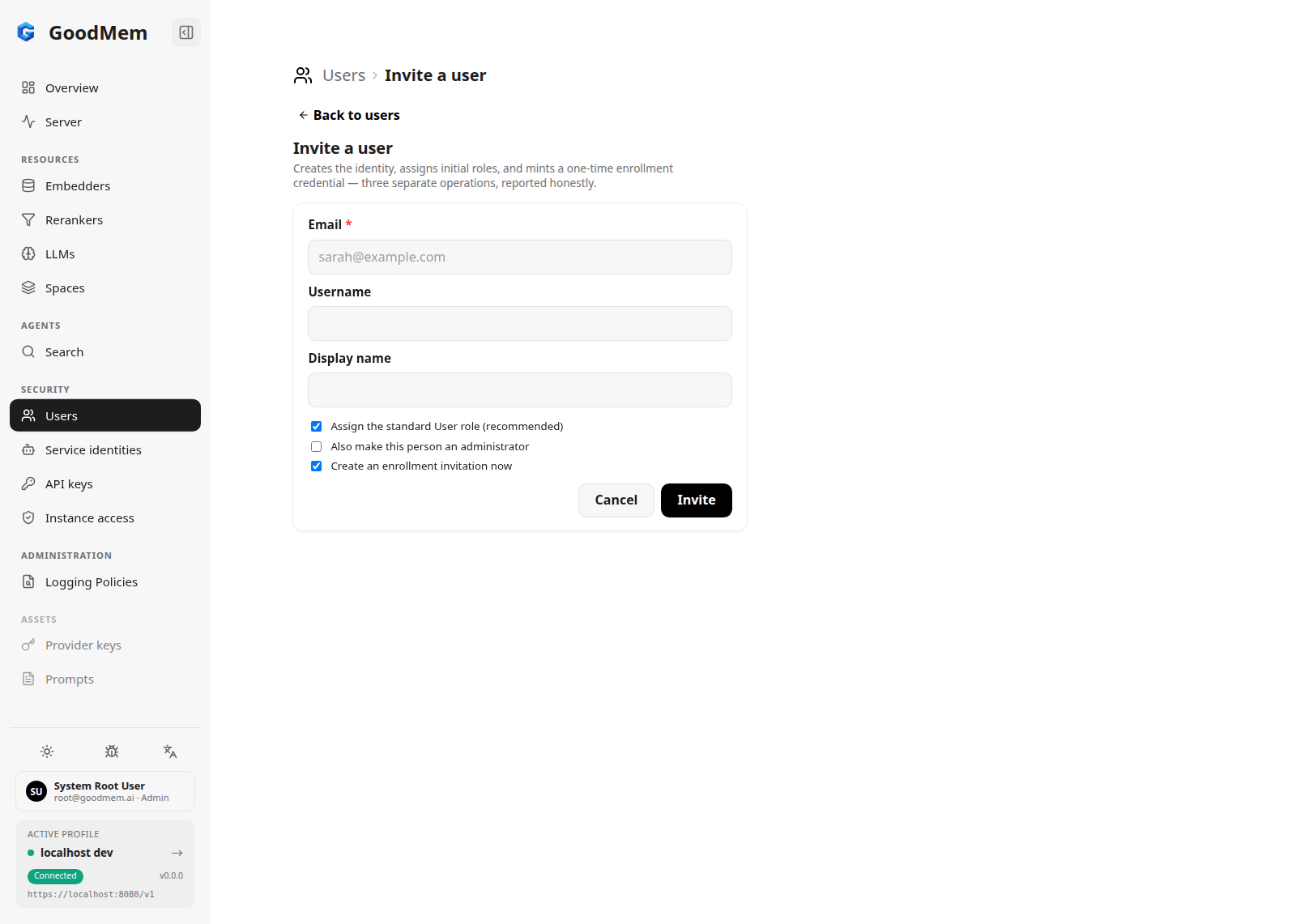
These are three separate API calls, and the result reports each one. If a later step fails, the earlier ones stand: the user exists, and you finish from their detail page rather than inviting again.
The enrollment credential (gme_...) is shown once, at the end of the invite. Copy it and deliver it over a channel you trust. It is single-use, bound to that person, and expires 24 hours after creation.
User Detail
Open a user to see their profile, instance roles, enrollment history, and API keys.
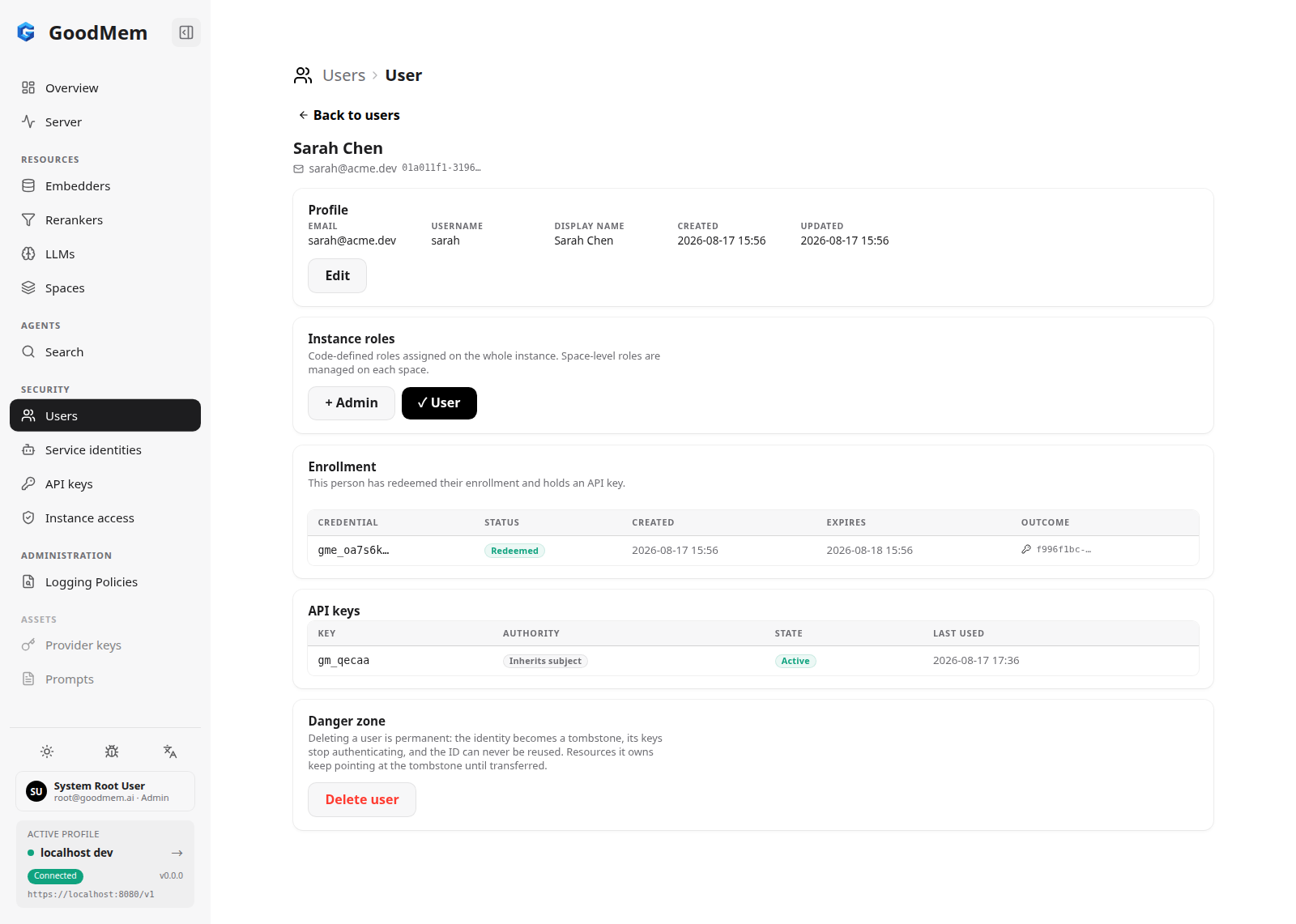
- Profile — email, username, and display name; Edit changes them.
- Instance roles — toggle
AdminandUseron or off. Space-level roles are not here; they are managed on each space. - Enrollment — the person's invitation history. While an invitation is open or expired, Rotate invitation revokes it and issues a replacement, and Revoke invitation cancels it without a replacement. Once redeemed, no new invitation can be created: credential recovery is ordinary key rotation by the person themselves.
- API keys — keys that authenticate as this user. Human keys are self-issued, so you can revoke one here but cannot mint one for someone else.
- Danger zone — Delete user writes a permanent tombstone. Their keys stop authenticating and resources they own keep pointing at the tombstone until transferred.
Redeeming an Invitation
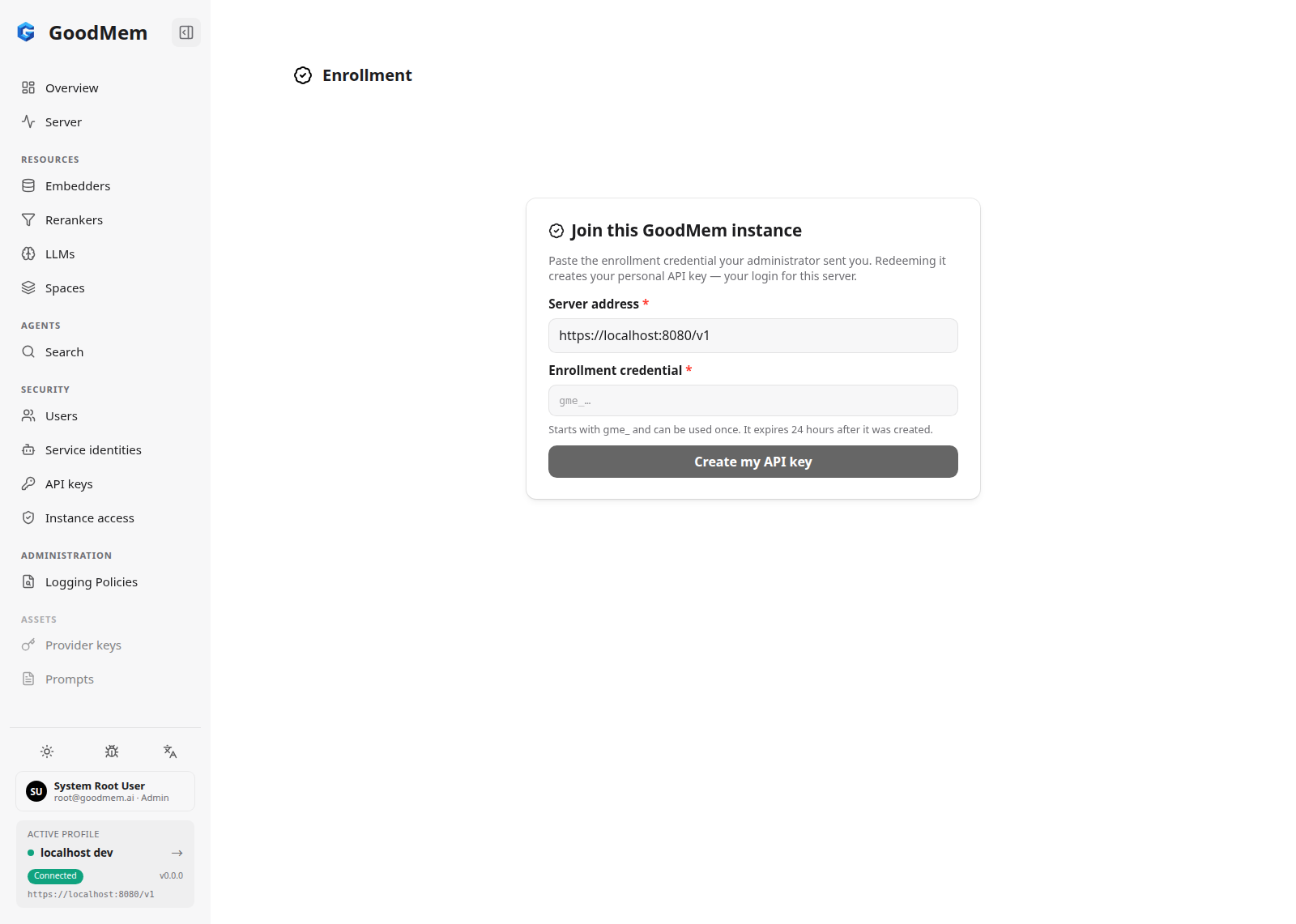
The person you invited opens /console/enroll on the same server, pastes the enrollment credential, and clicks Create my API key. The console redeems the credential and shows their first API key once. This is the console equivalent of Redeem an Enrollment.
Service Identities
Security → Service identities lists workload principals with their owner and creation date. Service identities are created by humans and owned by whoever created them.
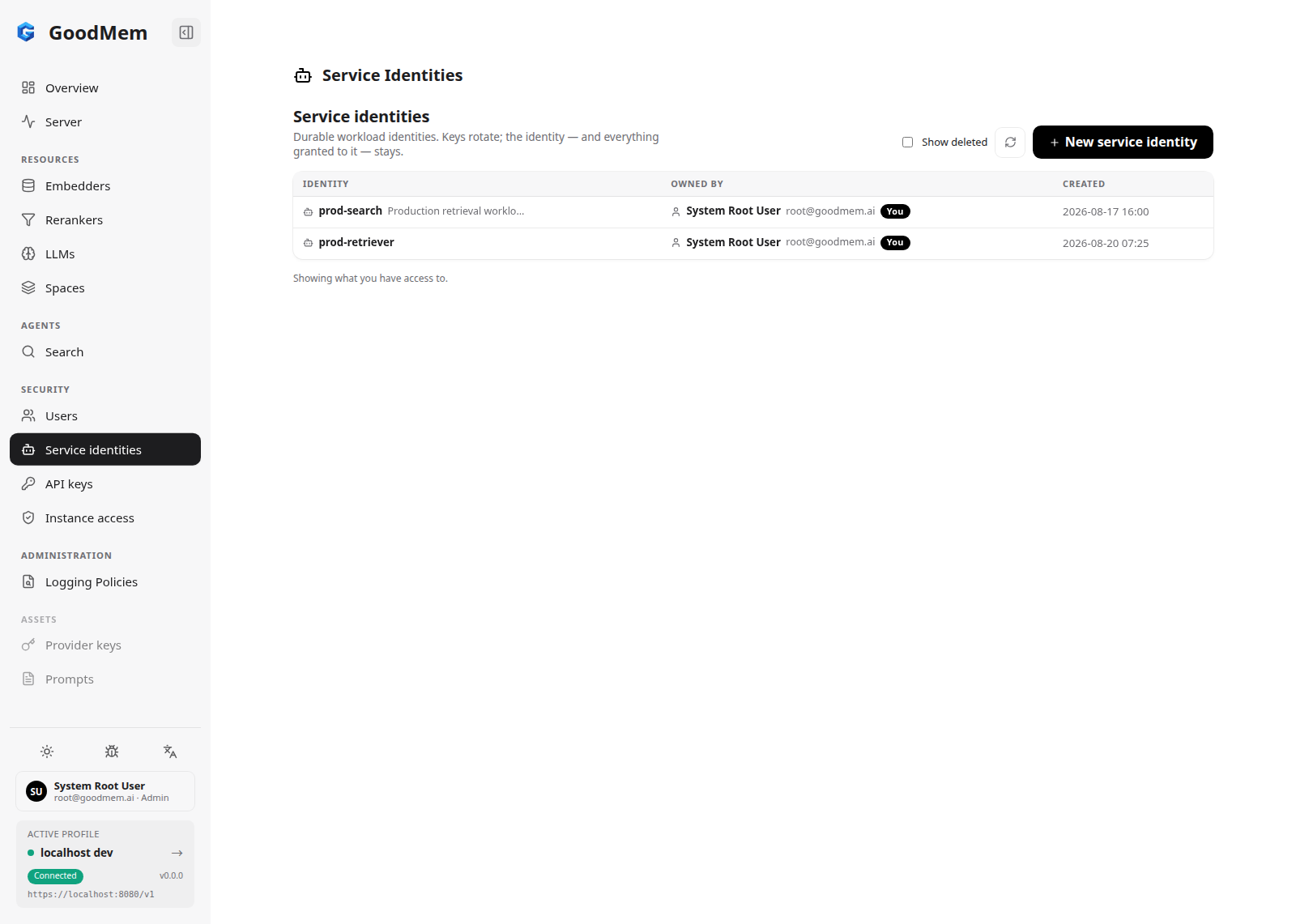
New service identity asks for a globally unique name and an optional description. Creation does nothing else — no key, no grants — so the next steps are on the identity's detail page and on the spaces it needs.
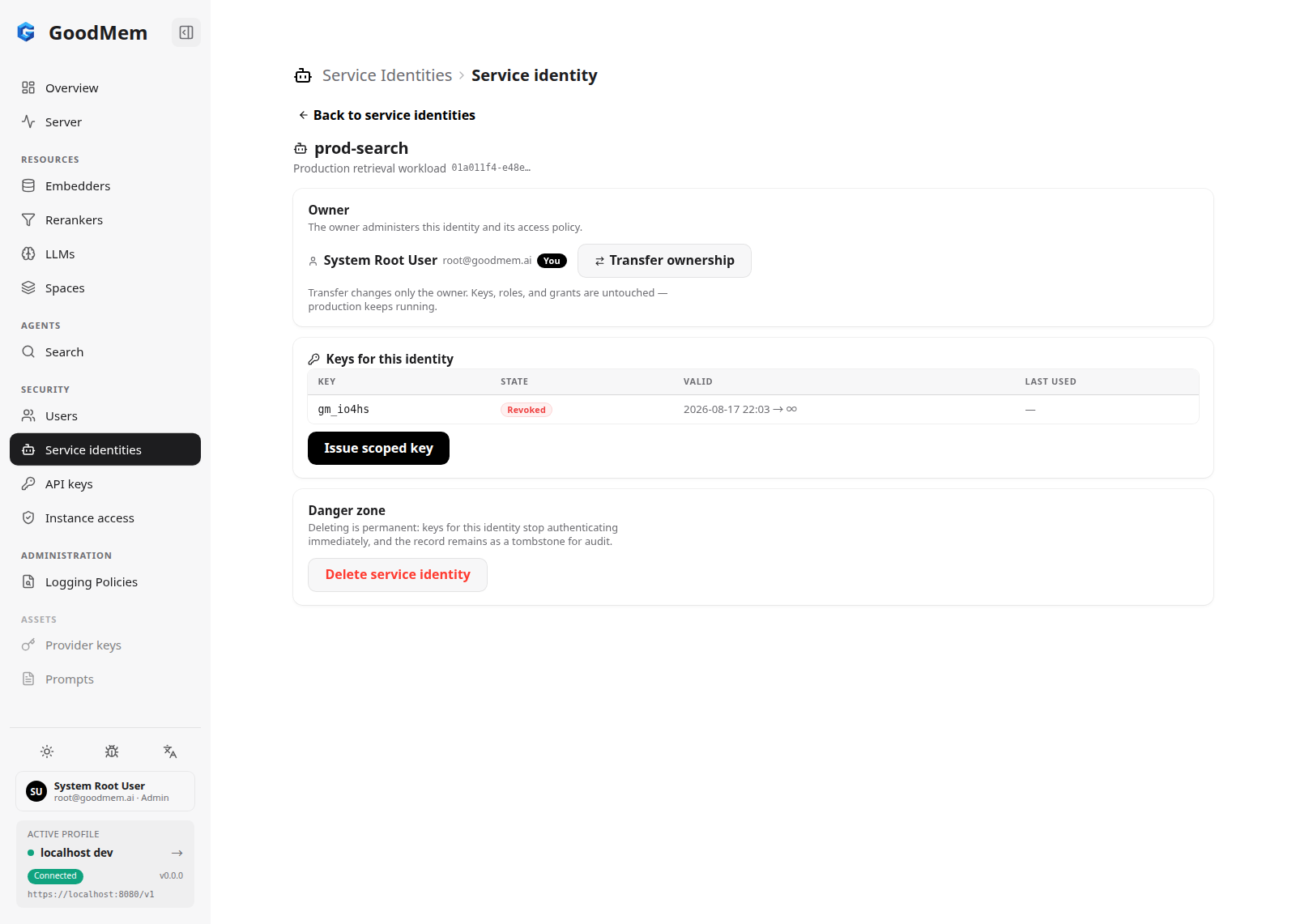
- Owner — the human who administers the identity. Transfer ownership moves that administrative right to another principal; keys, roles, and grants are untouched, so production keeps running. This is how you hand off a workload when its owner leaves.
- Keys for this identity — every key whose subject is this identity. Issue scoped key opens the API key form with this identity preselected. Service identities can only hold scoped keys.
- Danger zone — Delete service identity is permanent: its keys stop authenticating immediately and the name is never reusable.
Granting a service identity access is done where the access lives: on a space's Access tab (pick the workload in the principal picker) or under Instance access. Issue the key after the grants exist — every ceiling rule is checked against the identity's live authority at issuance.
API Keys
Security → API keys lists every key you can read: prefix, the principal it acts as, authority mode, state, validity window, and last use. The state filter narrows to active or revoked keys.
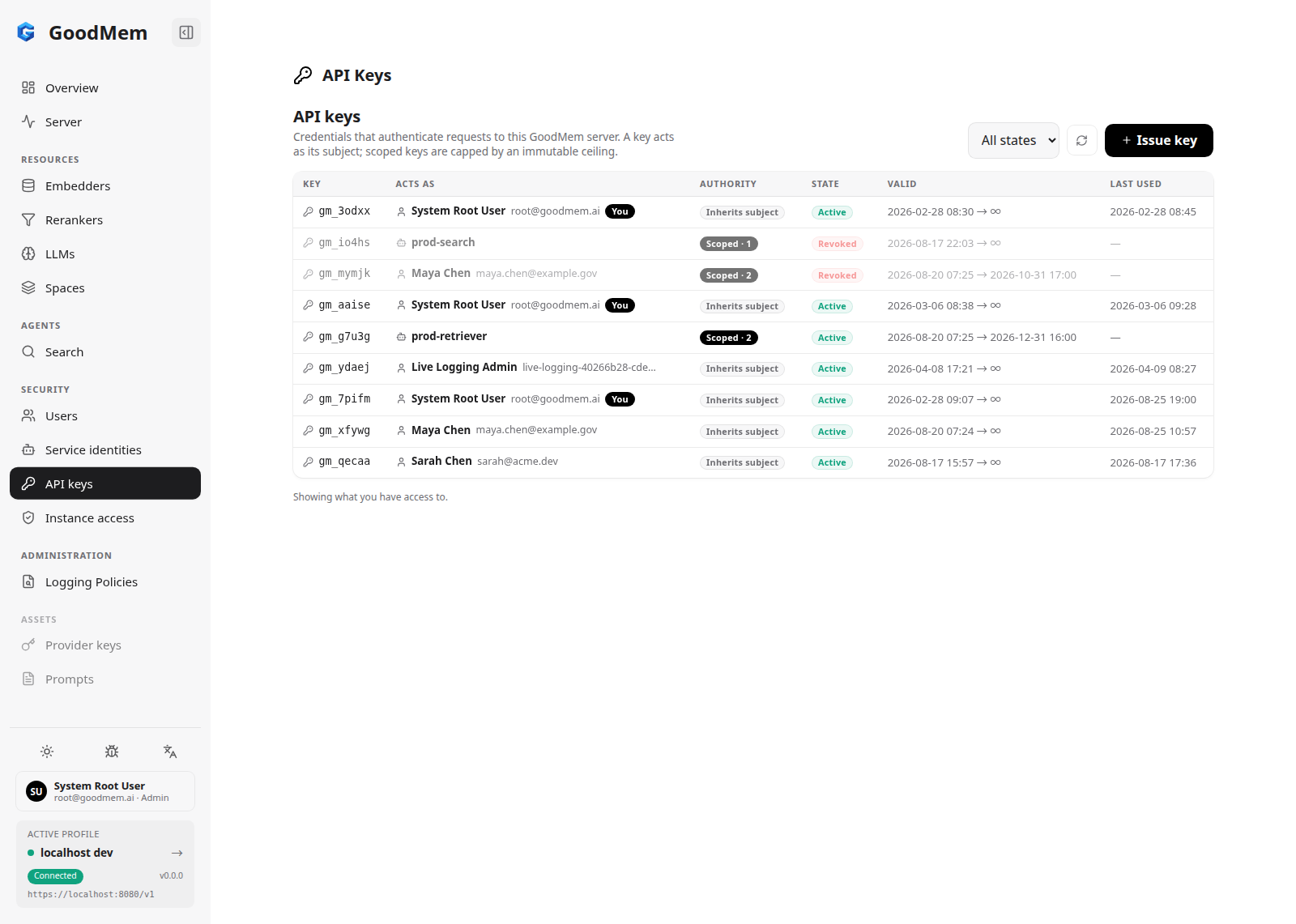
The Authority column is the key's mode, fixed at issuance:
- Inherits subject — carries the subject's live authority, whatever it is at request time. Only a human can hold one, and only self-issued.
- Scoped · N — capped by N immutable ceiling rules. Every request must pass both the subject's live authority and the ceiling. See API Keys and Ceilings.
Issuing a Key
Click Issue key. Acts as is yourself or a service identity you administer. Authority is Inherit my access (available only when acting as yourself) or Scoped.
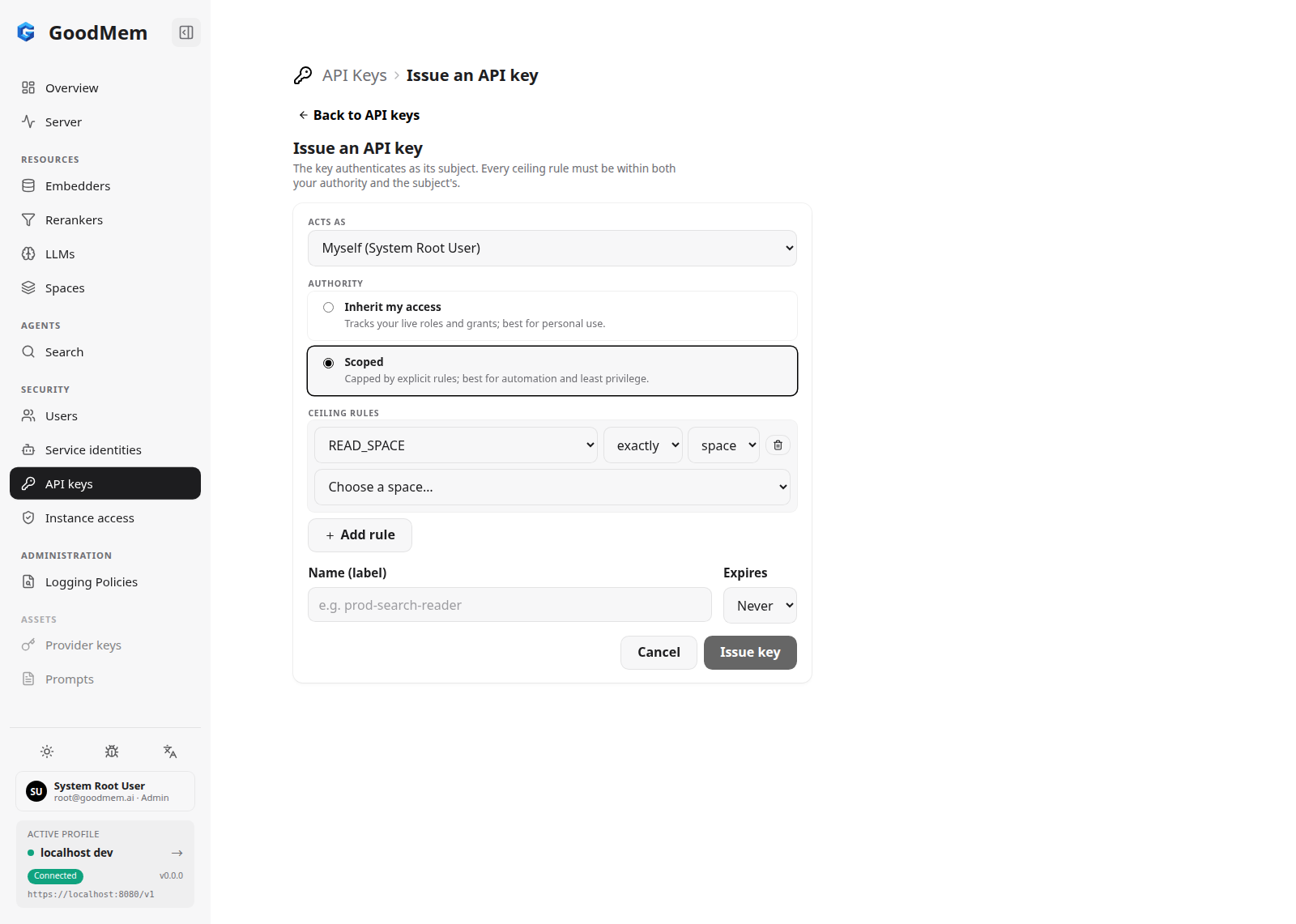
Choosing Scoped reveals the Ceiling rules builder. Each rule is an Operation, a Scope (any, own, exactly, or direct members of), and — for exactly and direct members of — a Resource type and a Resource picked from a list. Add rule repeats it. These are the same rules the CLI's --ceiling flag accepts; the console fills in the UUIDs for you.
The server rejects a ceiling that exceeds either your own authority or the subject's, so assign roles and grants to the subject before issuing its key. Expires sets an optional expiration; neither bound of the validity window can be changed later.
The raw key is shown once, on the confirmation screen after Issue key. The server keeps only a hash. If it is lost, revoke the key and issue a new one.
Key Detail
Open a key to see who it acts as, who administers it, who issued it, its validity window, and — for scoped keys — the full ceiling.
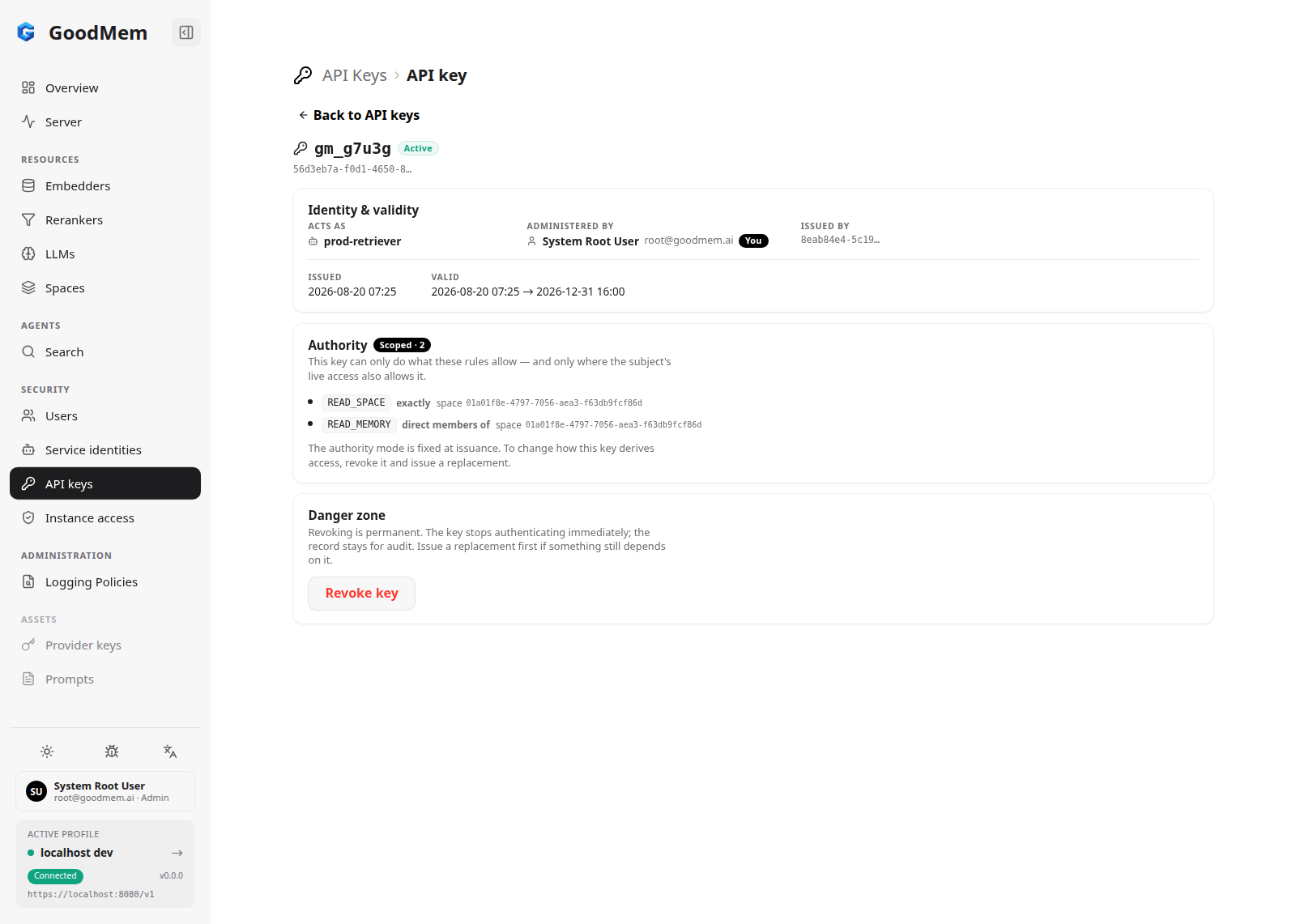
Revoke key is permanent and immediate; the record stays for audit and remains visible in the list as revoked. Rotate by issuing the replacement first, deploying it, then revoking the old key.
Instance Access
Security → Instance access is the instance-wide policy: who owns the instance, who holds instance roles, and any grants whose scope is the whole instance.
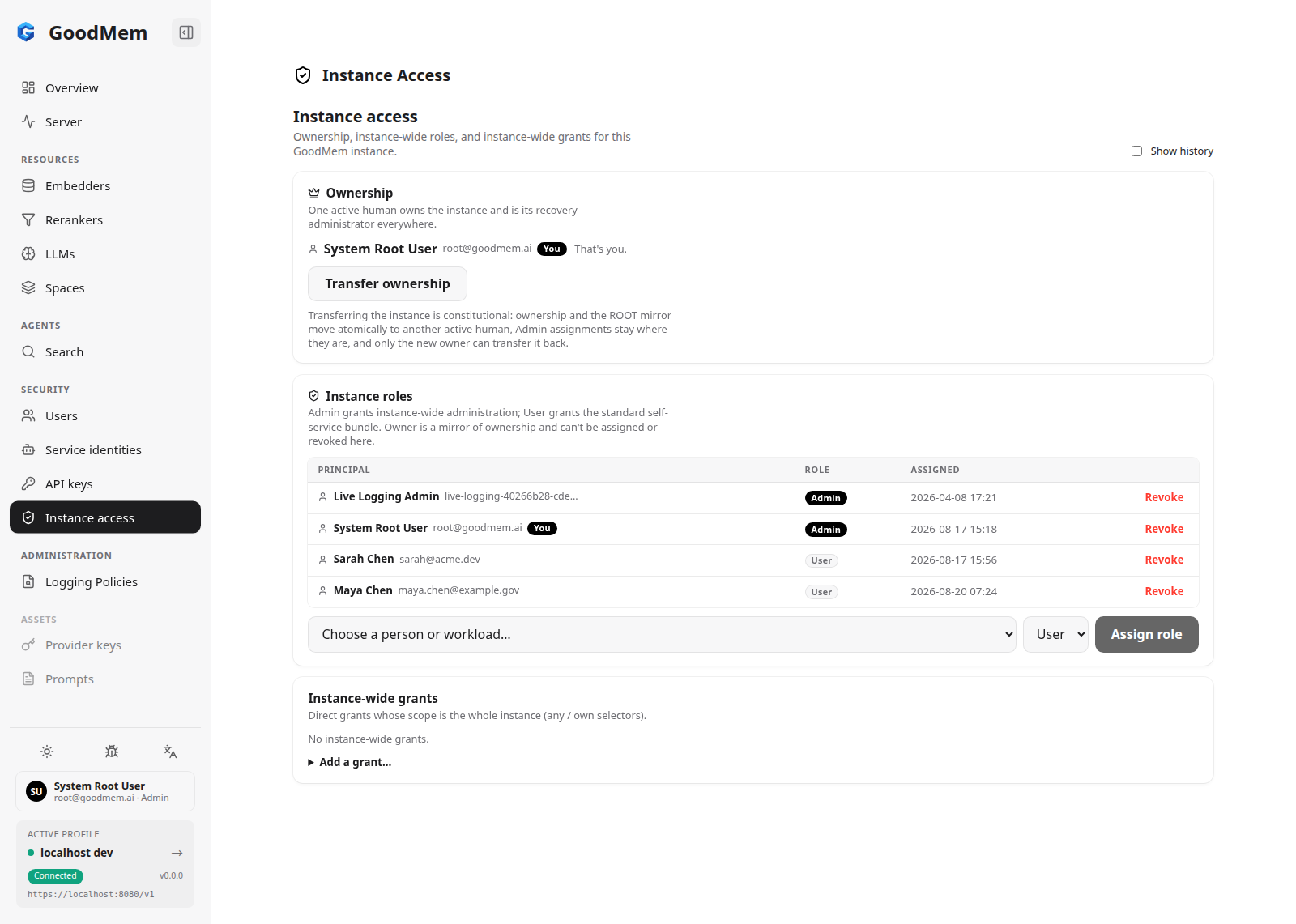
- Ownership — exactly one active human owns the instance and can always administer access policy everywhere. Transfer ownership moves ownership and the
ROOTmirror atomically to another human;ADMINassignments stay where they are, and only the new owner can transfer it back. - Instance roles — assign
AdminorUserto a person or workload, or revoke an existing assignment.Owneris a mirror of ownership and cannot be assigned or revoked here. The full capability sets are in Built-in Roles. - Instance-wide grants — direct grants with the
anyorownselector. Add a grant… opens the same rule builder as the key form.
Show history includes revoked assignments and grants. When a deleted principal still owns spaces, keys, or service identities, an Orphaned resources card lists them with a Transfer… action, since deletion never reassigns ownership on its own.
Space Access
Open a space from Spaces and switch to its Access tab. This page is the console form of Share a Space.
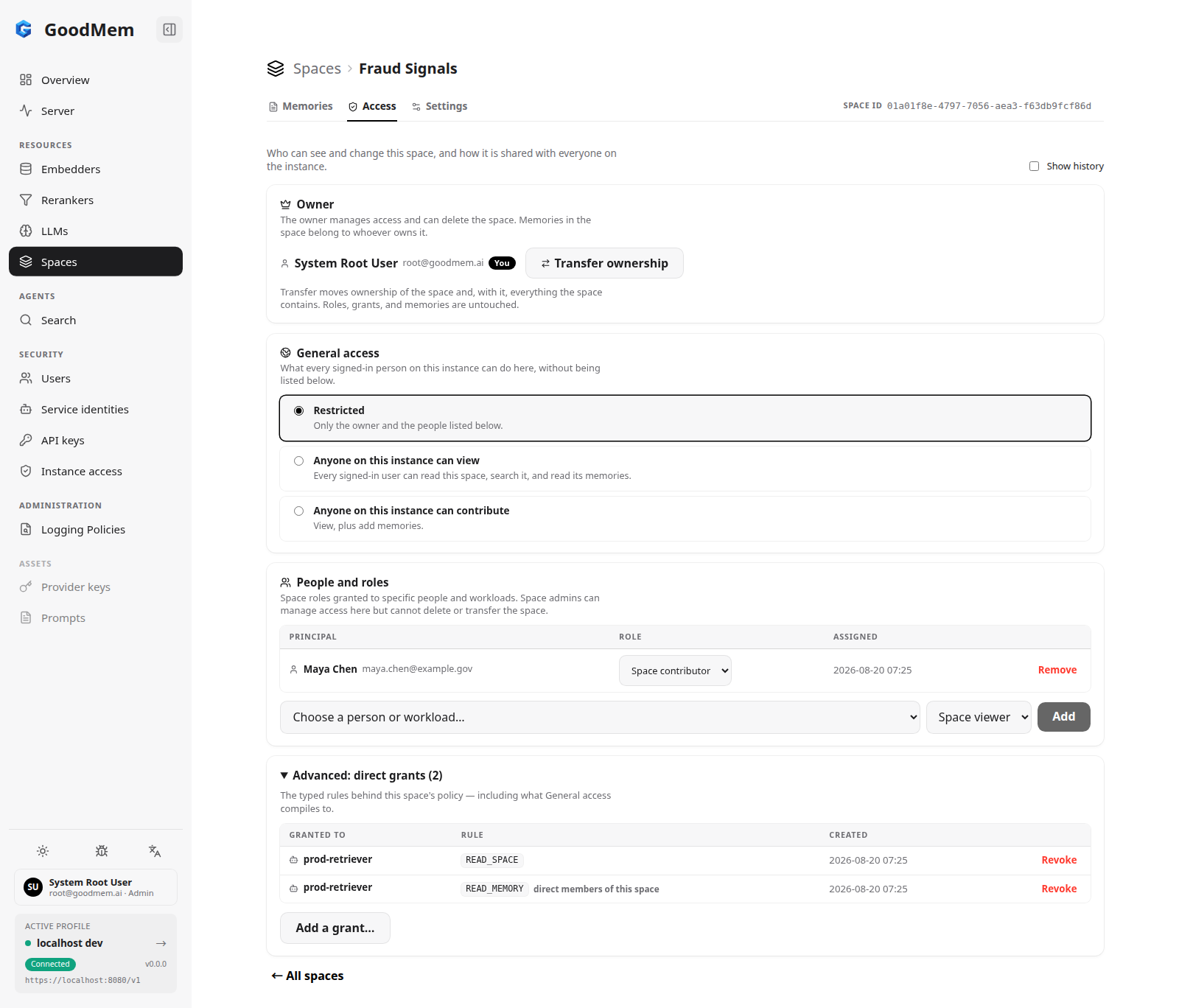
- Owner — the space owner manages access and can delete the space. Transfer ownership moves the space and everything in it; roles, grants, and memories are untouched.
- General access — what every signed-in principal on the instance can do here without being listed individually. Restricted is the default. Anyone on this instance can view and Anyone on this instance can contribute compile to all-authenticated grants for the read gates (and, for contribute,
CREATE_MEMORY). These never expose the space to anonymous callers. If the space carries hand-written all-authenticated rules that do not match one of these levels, the card shows Custom and the exact set is under Advanced. - People and roles — space roles for specific people and workloads: Space viewer, Space contributor, Space content manager, and Space admin. The picker lists both users and service identities. Change a role in place with the dropdown, or Remove it.
- Advanced: direct grants — the typed rules behind the space's policy, including what General access compiles to. Use Add a grant… when a role gives away more than you intend, for example
READ_SPACEandREAD_MEMORYfor a retrieval workload with noCREATE_MEMORY.
A space admin can manage everything on this page except ownership; deleting or transferring the space stays with the owner and instance administrators.
Resource Access
Embedders, LLMs, and rerankers have an Access page as well, reached from the resource's detail view. Only direct grants apply to these resources — roles bind to the instance or to a space, not to a provider resource. Use it to let a specific principal run a shared embedder (EXECUTE_EMBEDDER) without giving them the ability to read its credentials.
Where the Console Stops
The console does not do anything the API forbids, and it makes the irreversible operations explicit:
- A raw API key or enrollment credential is never displayed again after issuance.
- A revoked key or enrollment cannot be reactivated. Enrollment cannot restart after completion.
- A deleted user or service identity cannot be restored, and its name and UUID are never reused.
ROOTcannot be assigned; it moves only with an instance ownership transfer.
For scripted or repeatable setups, the same operations are available from the CLI and the REST API, and the how-to guides under Users and Access walk through the common workflows.