 GoodMem
Console Overview
A tour of the GoodMem web console and how to access it
GoodMem Console
The GoodMem console is a web-based interface for managing your GoodMem instance. It launches automatically alongside the server, so there is nothing extra to install.
Accessing the Console
Once the GoodMem server is running, open your browser and navigate to /console/ on your server. The console is served directly by the GoodMem server process — there is nothing extra to install or deploy.
Authentication
On first load, the console asks for a GoodMem API key. It validates the key against the server and stores it only in that browser tab. The session expires after 30 minutes without a successful API request; active use refreshes the timer.
Deployments can also launch the console with #x-api-key=<key> in the URL. The browser fragment is
not sent to the server, and the console removes it from the address bar after storing the key. Do not
put API keys in query parameters.
The Sidebar
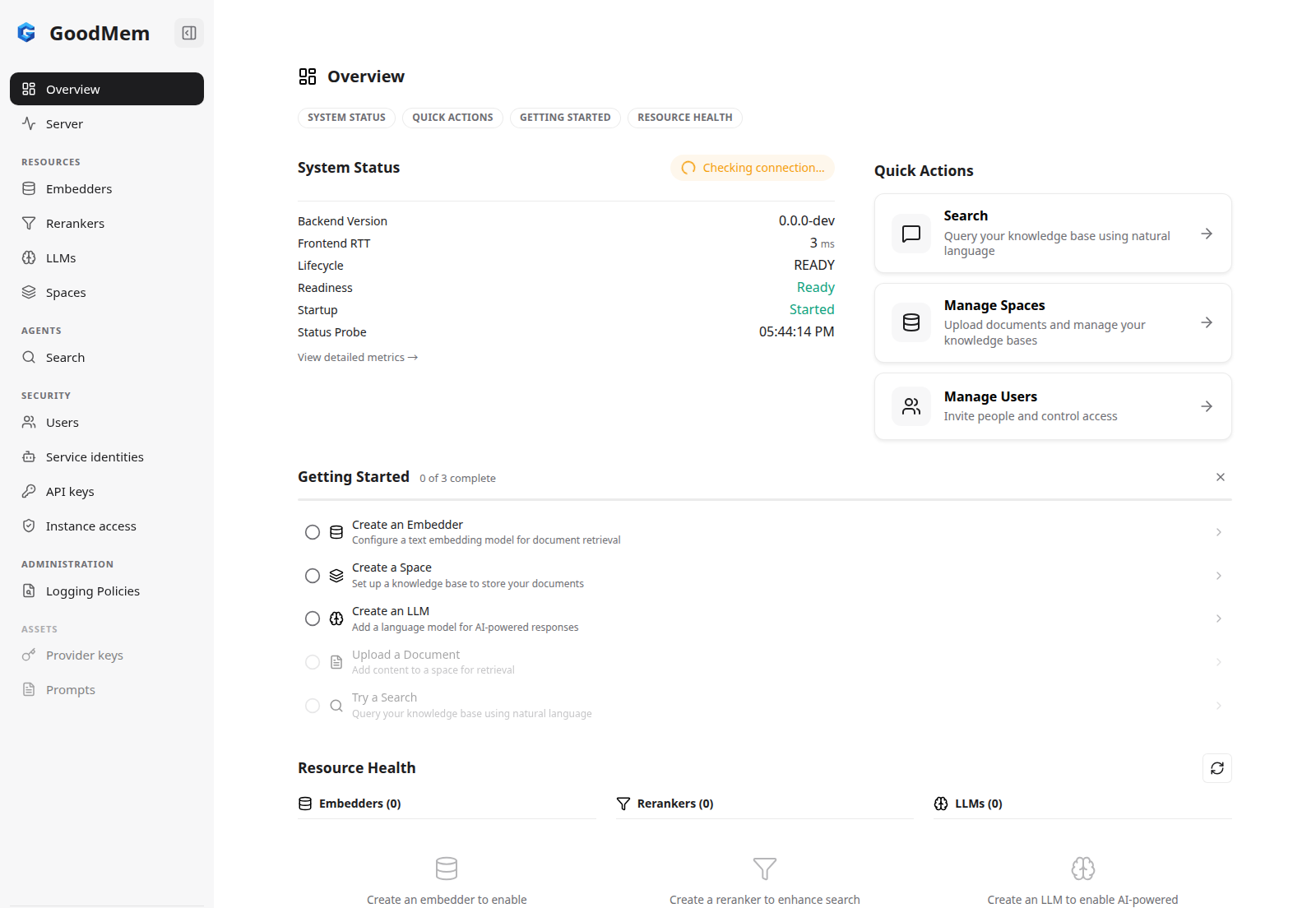
The left-hand sidebar is your primary navigation:
| Area | What it contains |
|---|---|
| Overview | System health, quick actions, resource health, and a Getting Started checklist |
| Server | Live server metrics and resource usage |
| Resources | Embedders, rerankers, LLMs, and spaces |
| Agents | Search and retrieval workflows |
| Security | Users, service identities, API keys, and instance-wide access |
| Administration | RetrieveMemory logging policies |
| Assets | Browser-local provider keys and reusable prompt templates |
Getting Started Checklist
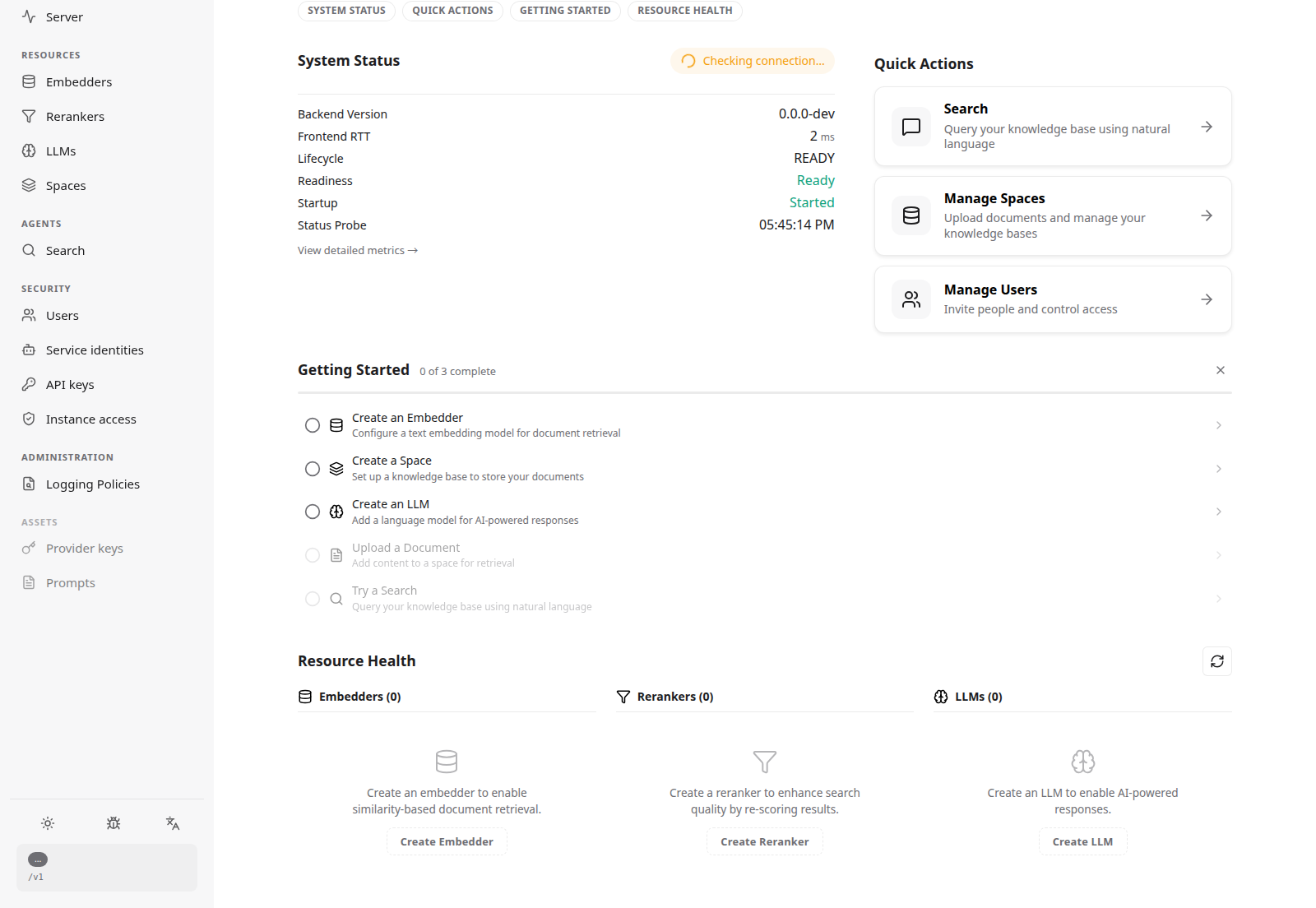
When you first open the console, the Overview page shows a Getting Started checklist that walks you through the essential setup steps:
- Create an Embedder
- Create a Space
- Create an LLM
- Upload a Document
- Try a Search
Steps 1 through 3 are checked off automatically as you create each resource. Once all three are complete, the checklist hides itself. You can also dismiss it at any time with the X button.
System Health
The Overview page displays the connection status of your server, including:
- Backend version and lifecycle state
- Frontend round-trip time to the server
- Resource health for each registered embedder, reranker, and LLM, with per-resource latency and status indicators
Next Steps
- Managing Resources — register embedders, LLMs, and rerankers
- Spaces & Documents — create spaces and upload content
- Search — query your knowledge base
- Access Control — invite users, create service identities, issue scoped keys, and share spaces
- Debug Mode — inspect the API calls the console makes